Thank you for purchasing YouTube Music Re-tuner for Safari.
Below you will find detailed instruction how to add the browser extension to your Safari browser on Mac or on iOS / iPadOS and how to use it.
Thank you for purchasing YouTube Music Re-tuner for Safari.
Below you will find detailed instruction how to add the browser extension to your Safari browser on Mac or on iOS / iPadOS and how to use it.
1. Download and install the app – once installed open the app, you should see a screen like this:
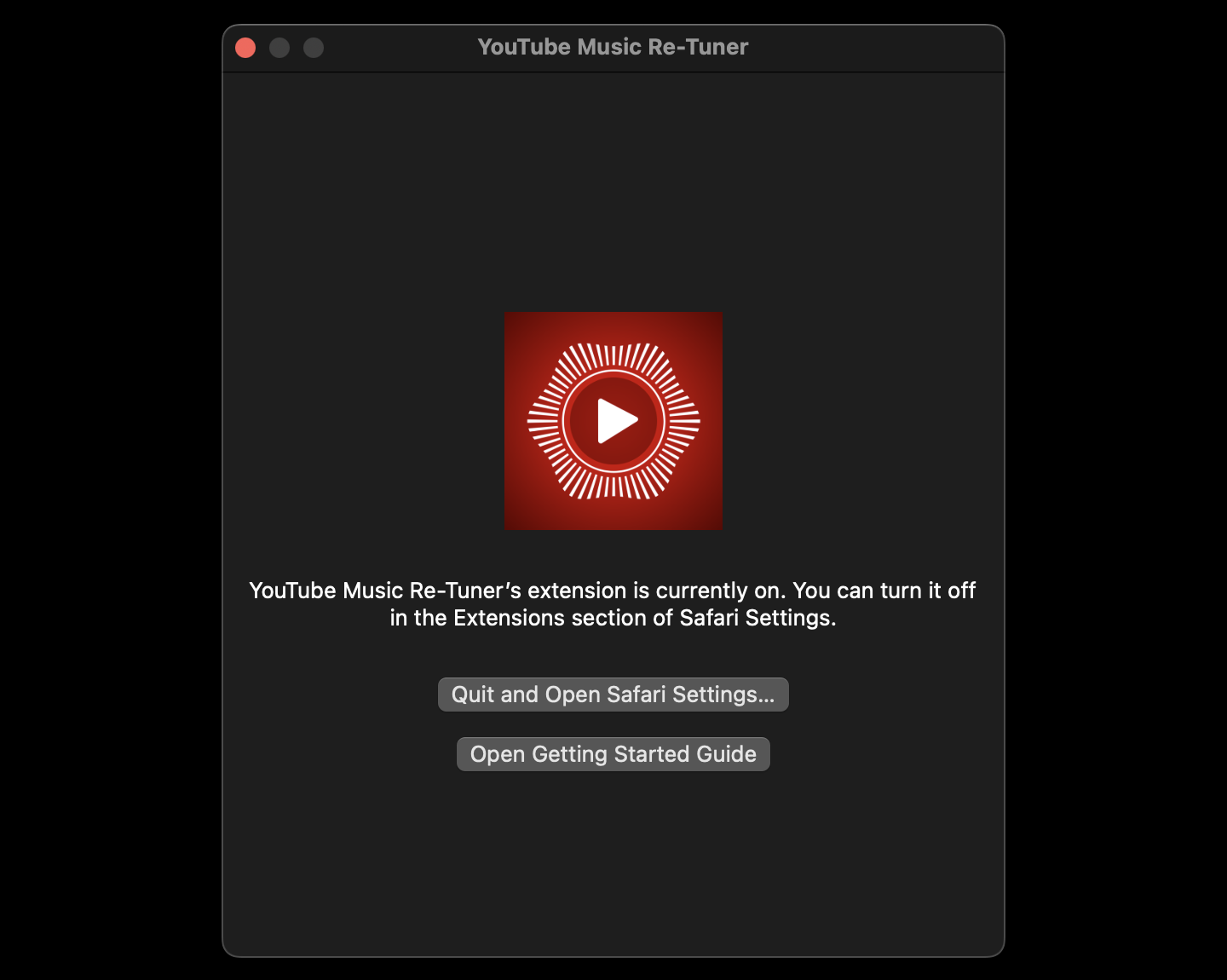
2. Click on the “Quit and Open Safari Settings”. Then tick the checkbox to enable the extension
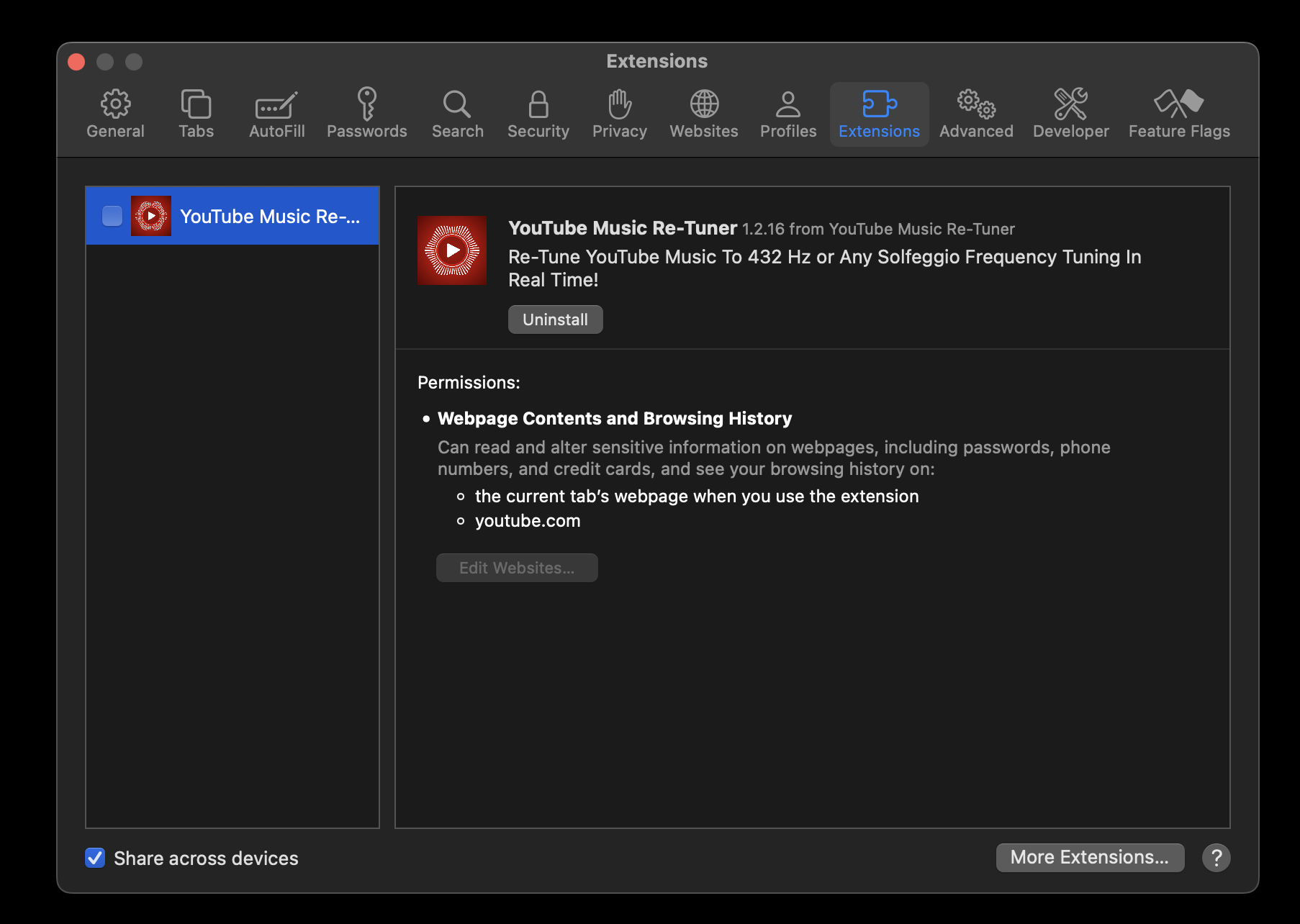
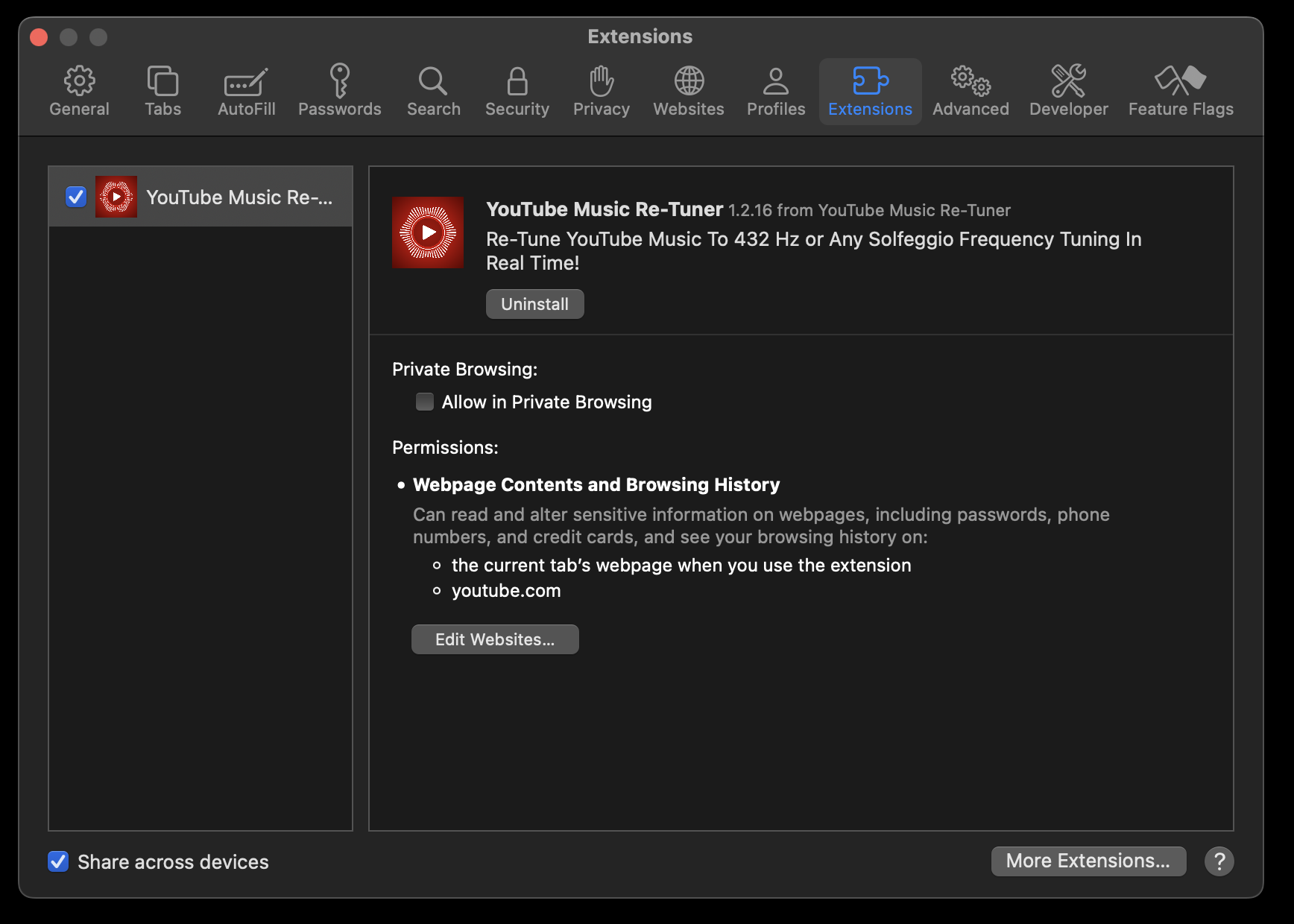
At this point you can also select if you want the extension to work when you are in Private Browsing (aka incognito mode) or not.
then:
3. open YouTube.com and you will have the ability to select the desired frequency tuning from either the extension button (next to the URL box)
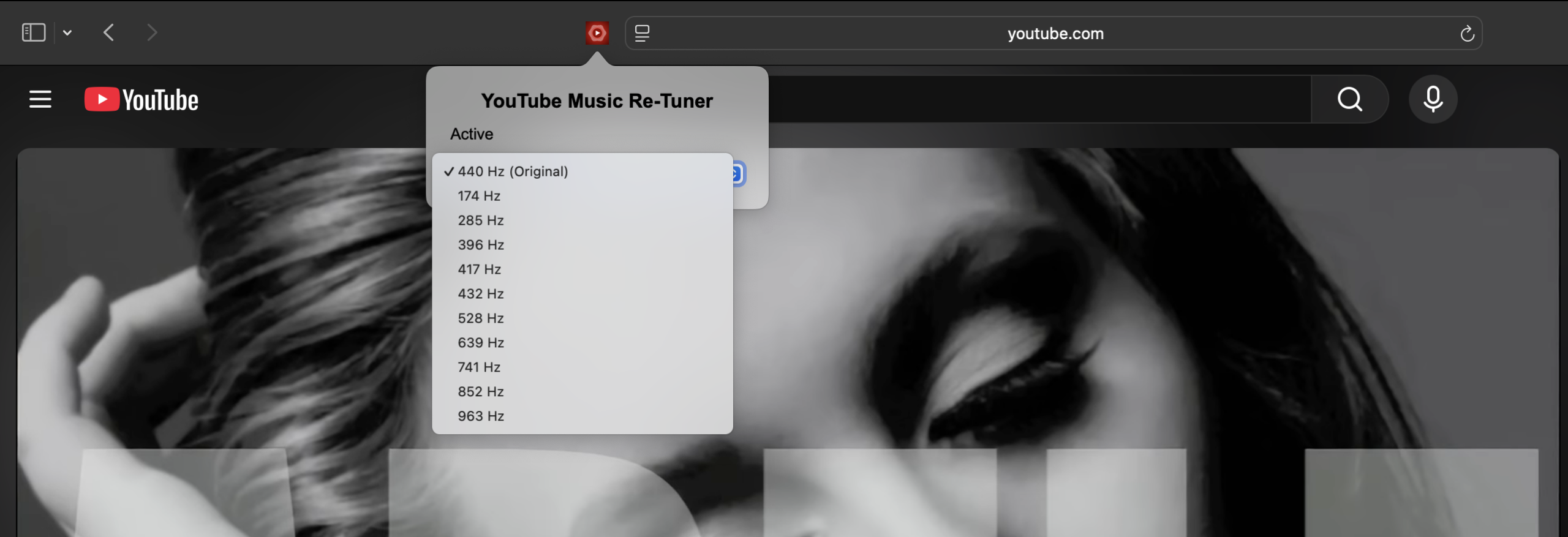
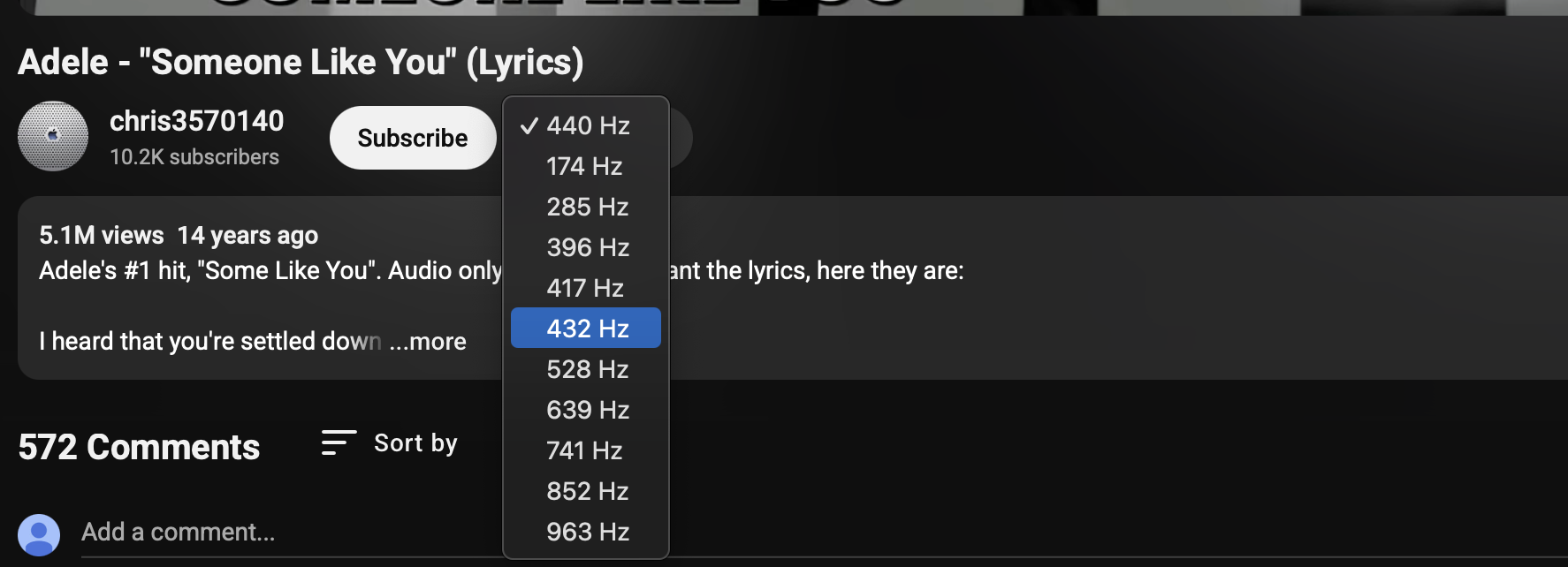
Or within the video page, next to the subscribe button:
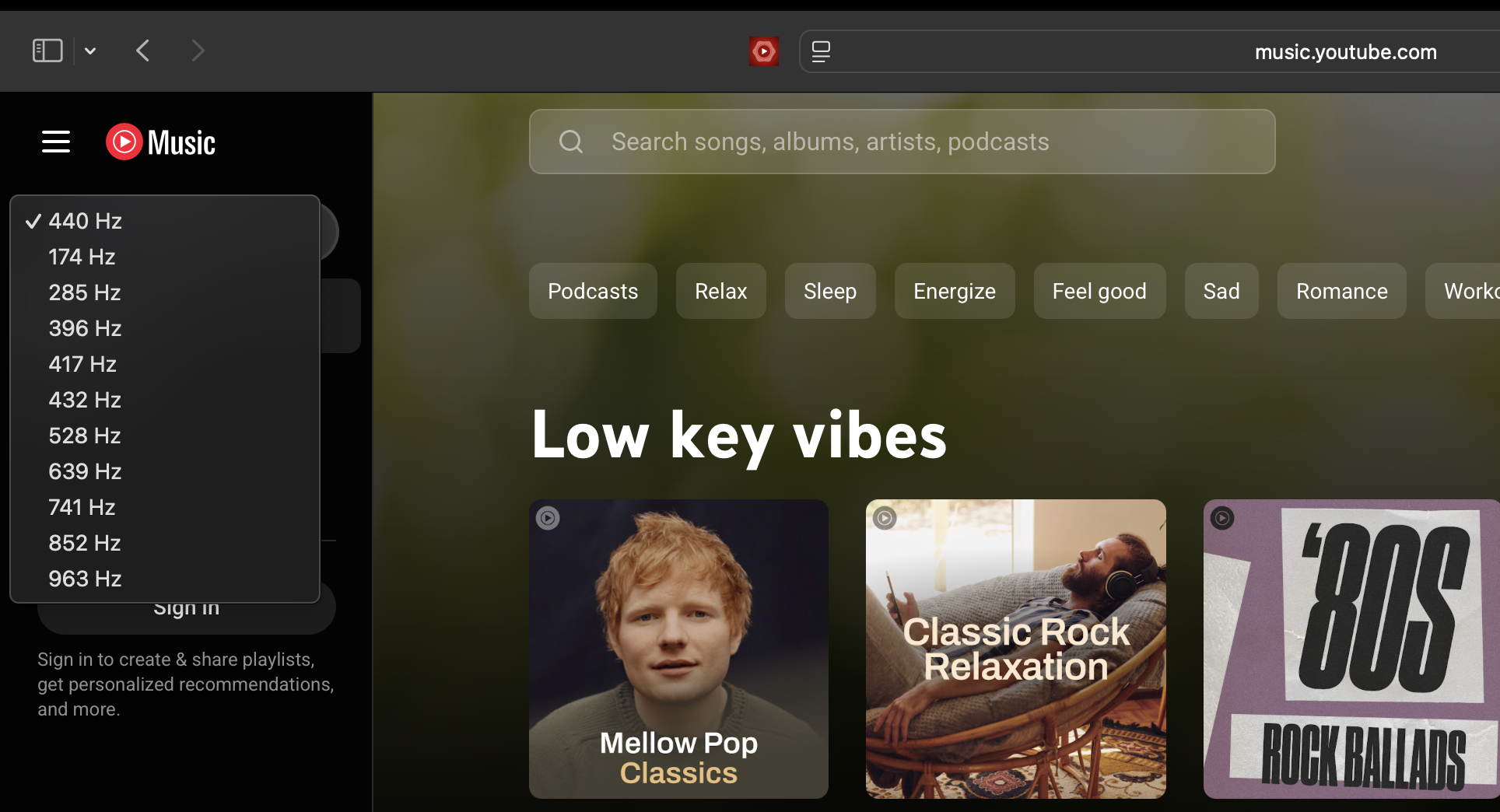
4. On YouTube Music (music.youtube.com) the selection button will appear under the logo in the left menu:
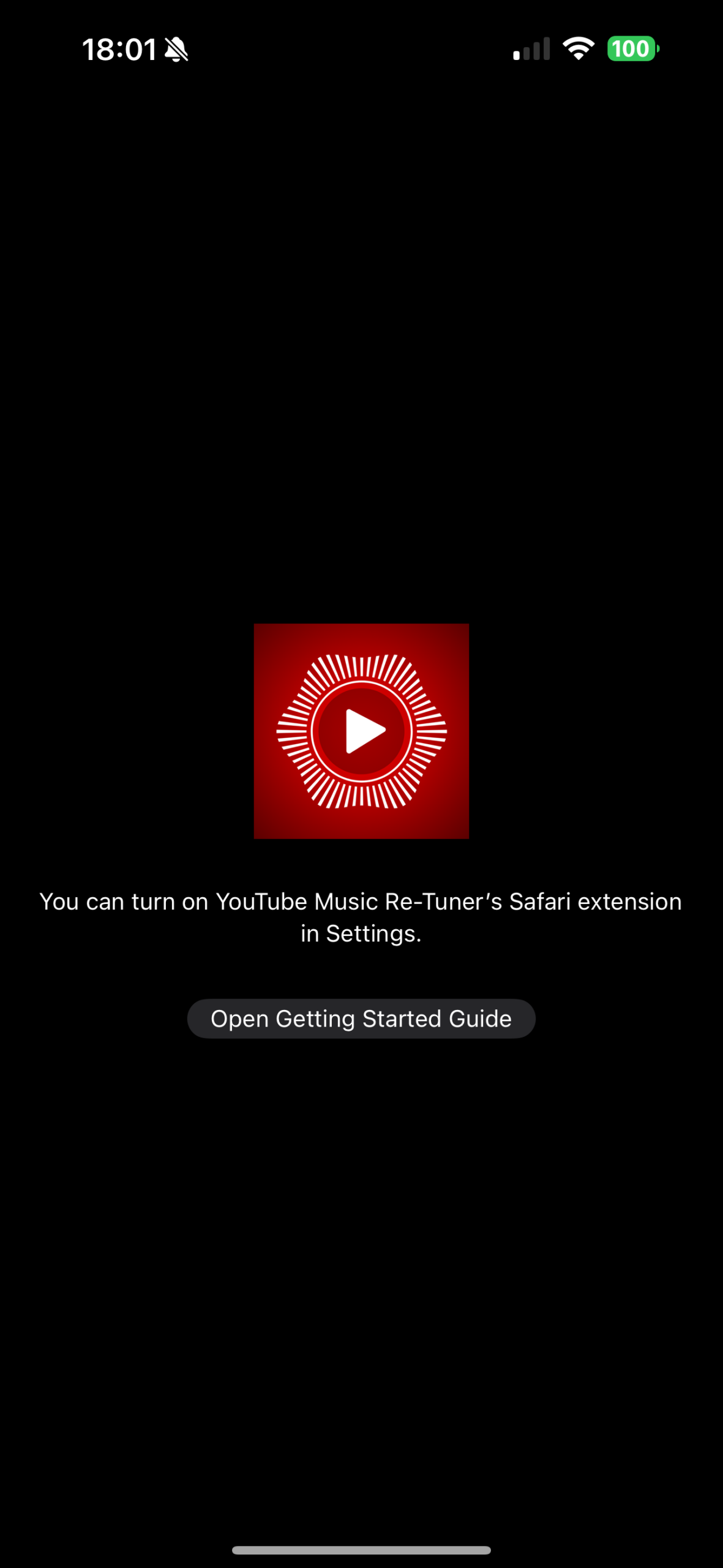
1. Download and install the app – once installed open the app, you should see a screen like this:
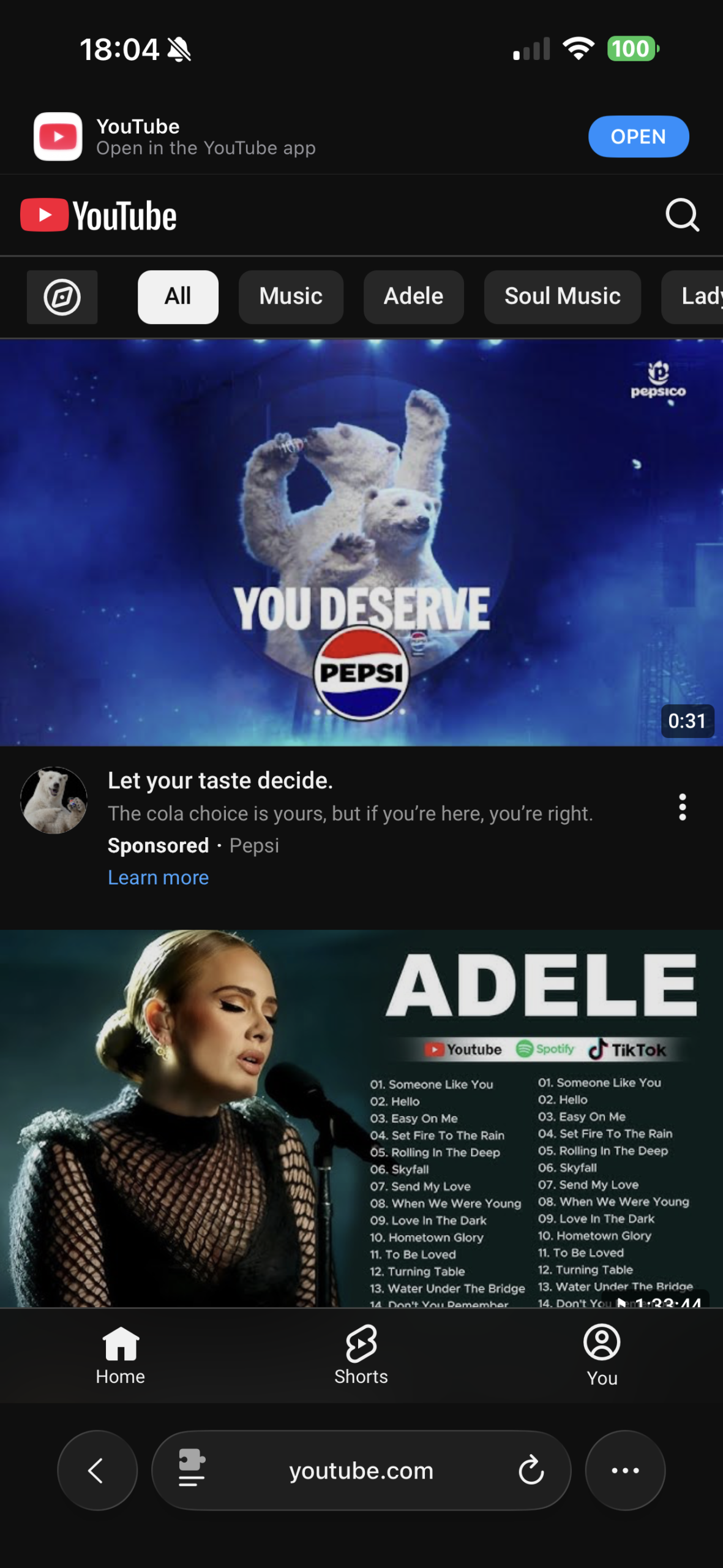
2. Then open Safari and go to youtube.com. You should see a puzzle icon next to the URL box:
3. Clicking on it should open a screen that looks like this:
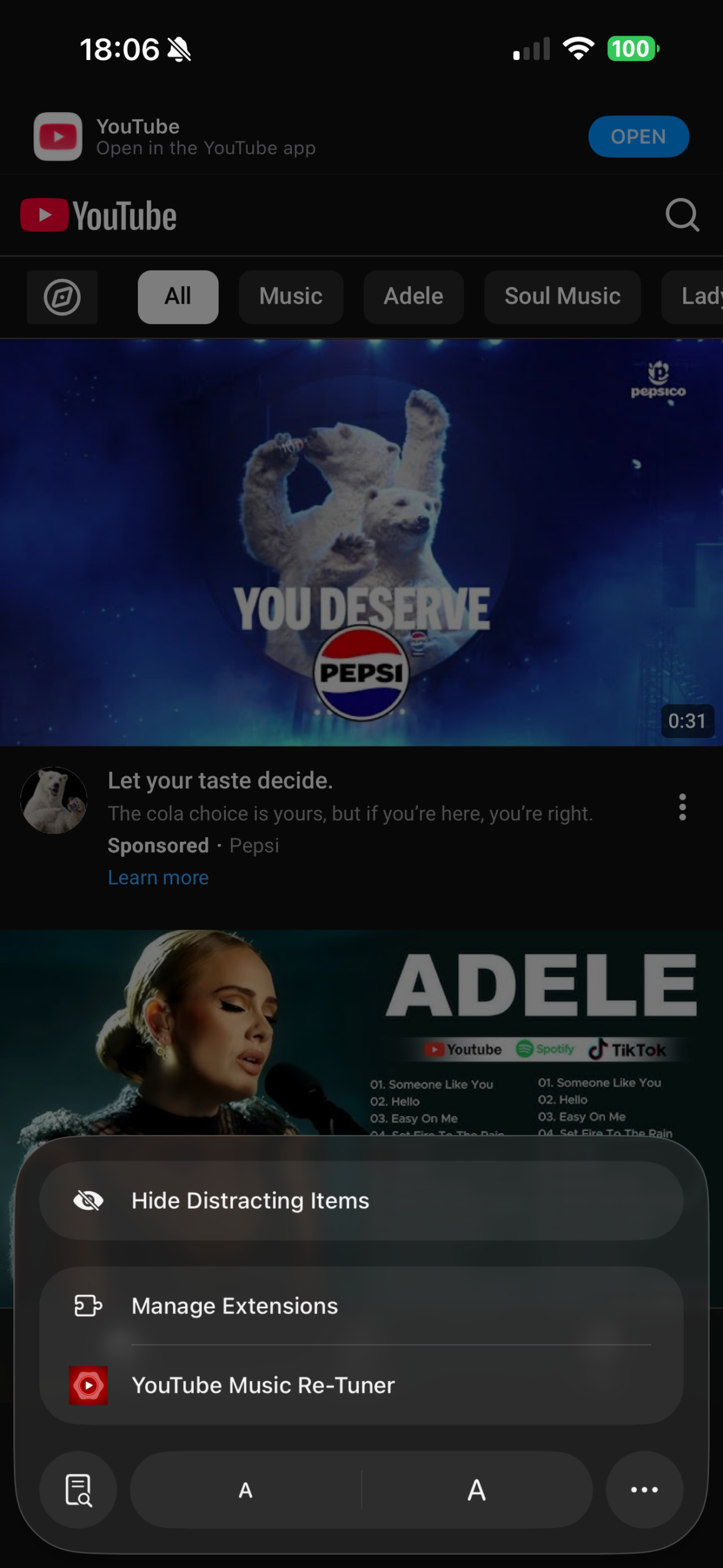
Then you should be able to click on the YouTube Music Re-Tuner extension:
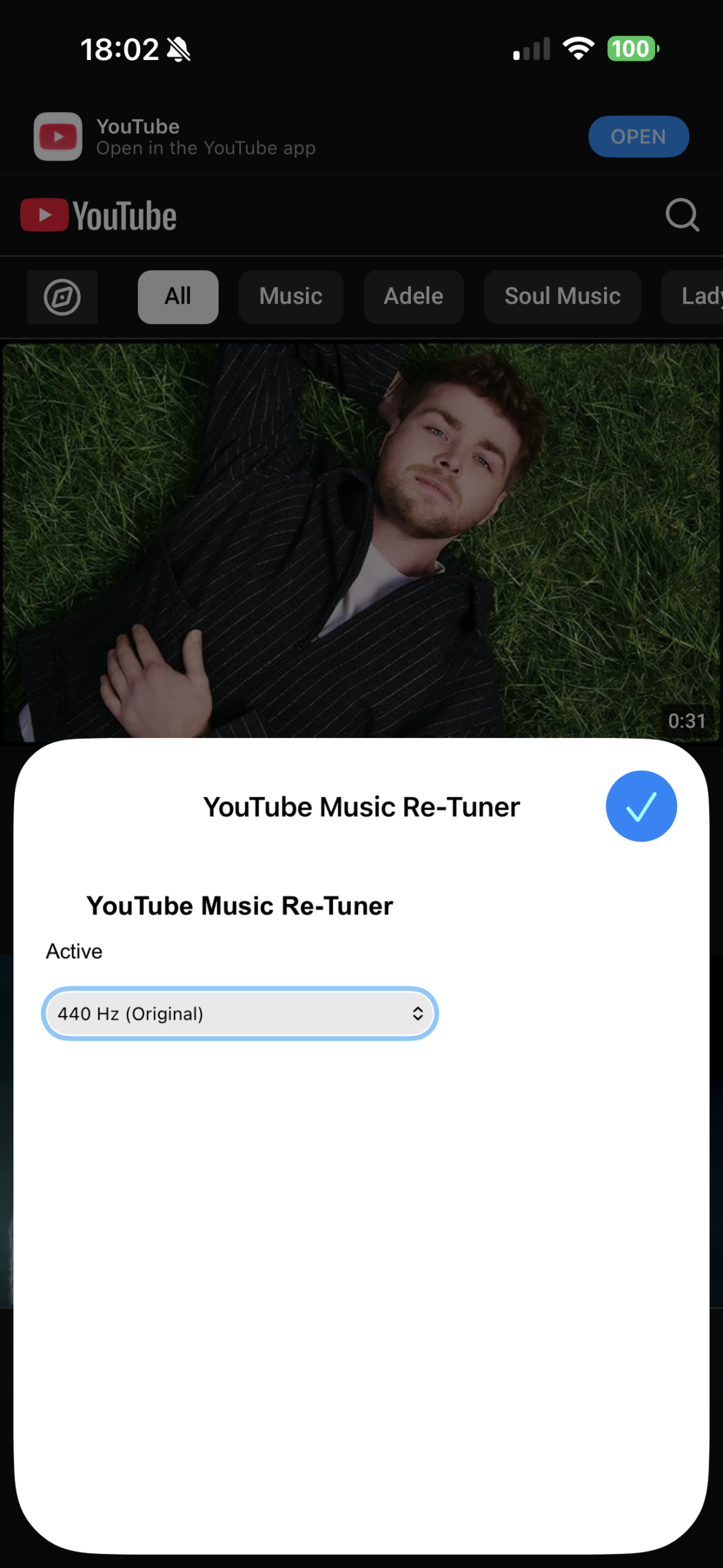
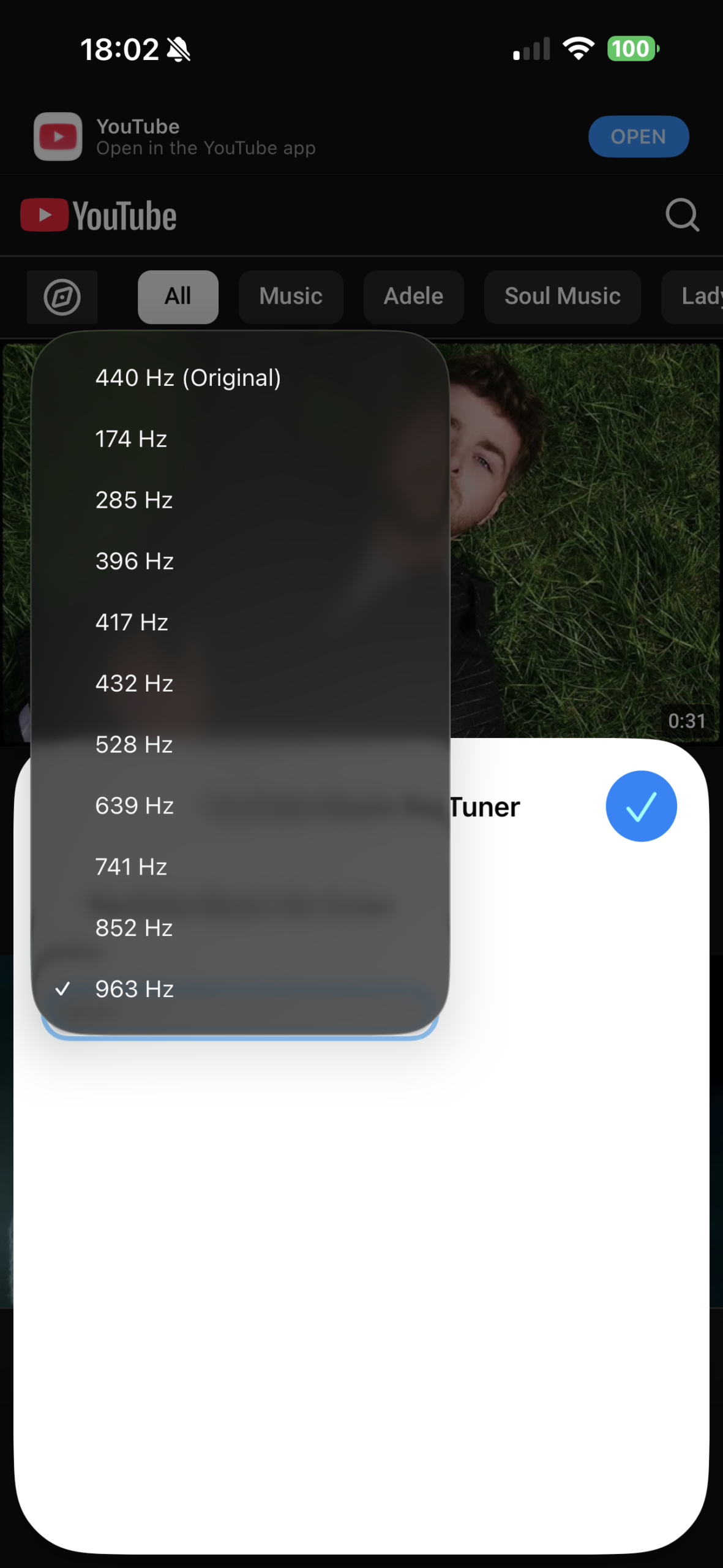
Once clicked, a open pop up window will open allowing you to select the output frequency for your music:
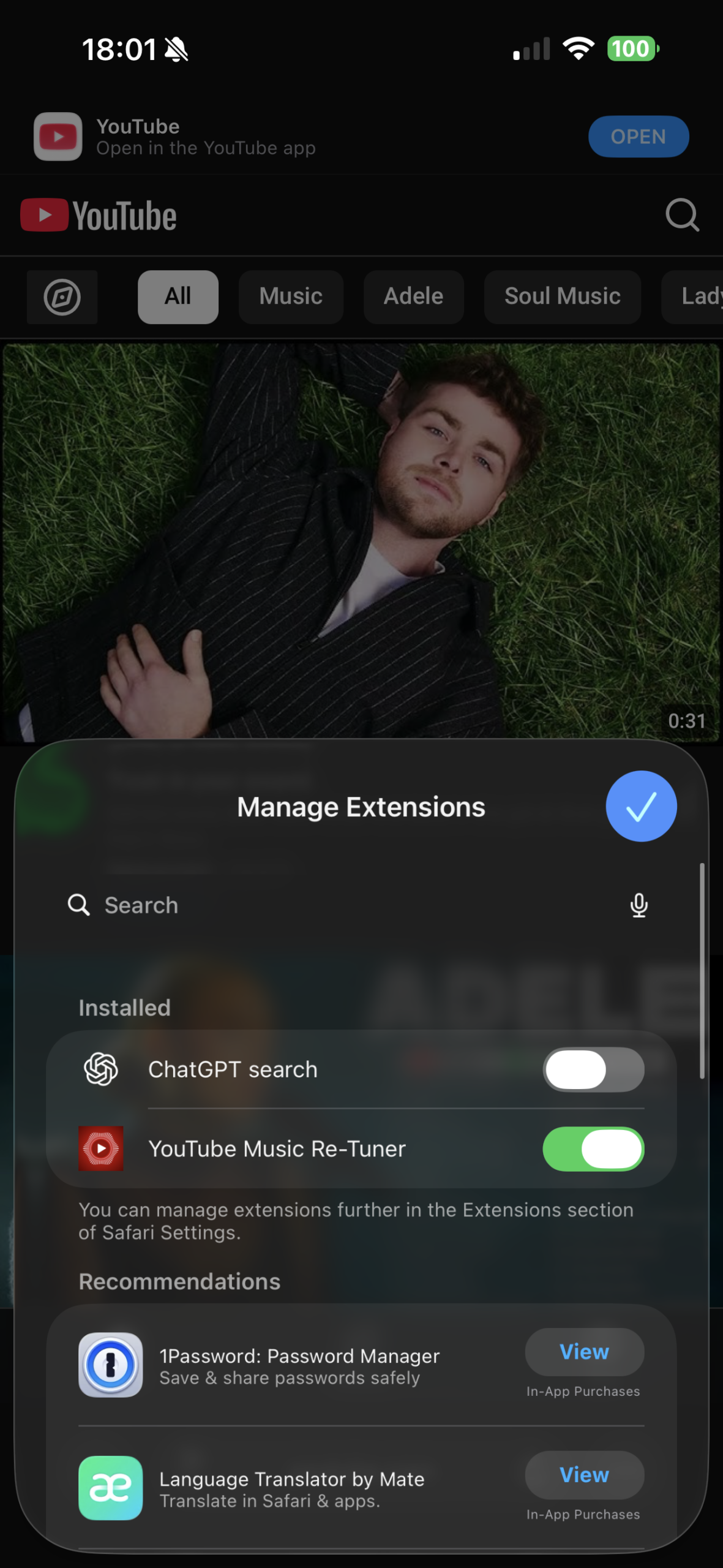
If you do not see the YouTube Music Re-Tuner button, make sure the extension is enabled within the Manage Extensions screen:
© 2026 Music ReTuner™. A SYQEL Property. | Terms | Privacy | Contact Us | Affiliates. We are not affiliated with, endorsed by, or sponsored by Apple Inc. or YouTube LLC. All trademarks, service marks, and logos referenced are the property of their respective owners.